Phone Notification Management Guide: Practical Ways to Reduce Distractions
Constant pings and lock screen alerts can quietly drain your focus. This phone notification management guide shows how to set priorities, tune app settings, and plan Focus or Do Not Disturb modes so you reduce distractions while still seeing what truly matters.
Why Phone Notifications Feel Overwhelming
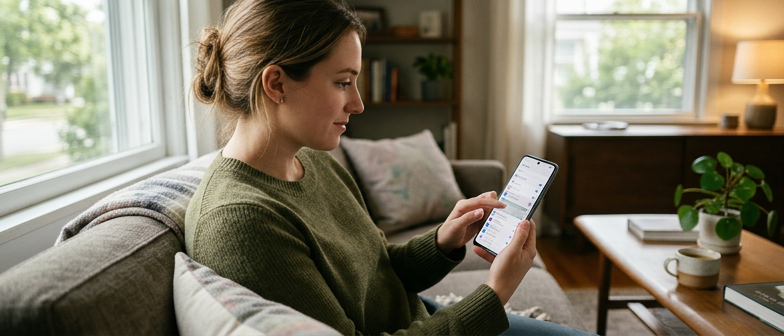
Many people unlock their phones to find a wall of alerts waiting on the screen. Messages, social updates, news, and app reminders all compete for attention, often starting with a buzz or banner on the lock screen. This constant stream makes it hard to focus on work, conversations, or even relaxing, because there is always one more ping to check. A practical Phone Notification Management Guide helps you notice how alerts shape your habits and how quick check‑ins turn into long scrolling. Its goal is to help you reduce phone distractions without feeling forced to give up useful technology.
Notifications feel overwhelming when they arrive faster than you can handle and when every alert seems equally urgent. Many apps are set to send frequent updates by default, so your phone behaves like an open door with no filter. Over time, this can create mental fatigue, frustration, and the sense that you are never fully off duty. By seeing that overload is mostly a problem of settings and habits, you make room to change how and when your phone interrupts you, staying informed while keeping interruptions at a manageable level.
Setting Up a Notification Priority System
A practical notification priority system starts with accepting that not every alert deserves the same attention. In any phone notification management guide, the first step is to decide which messages truly require immediate awareness and which can wait. Identify what is time sensitive, such as security alerts, banking approvals, family emergencies, or critical work messages. Contrast these with useful but non‑urgent updates like social media reactions, promotional offers, or app tips. This mindset becomes the basis for clear notification priority rules instead of letting every app interrupt you without distinction.
Once you know what matters most, group your apps by importance and by their role in your day. Place essential communication tools and key work or school apps in the highest tier, where banners, sounds, and lock screen alerts are allowed. Use a middle tier for shopping, news, or wellness tools, where you keep badges or a digest instead of constant pop ups. Lowest tier apps can have alerts disabled entirely to reduce phone distractions that do not add real value. Revisiting these categories from time to time keeps your priority system aligned with changing responsibilities and habits.
With your categories set, translate them into concrete settings by combining each app’s notification controls with built in focus or do not disturb tools. For high priority apps, allow alerts during focus modes so urgent items still reach you, while keeping sounds and vibrations restrained. For lower tiers, restrict lock screen visibility, mute sounds, or send them to a scheduled summary you check during a daily notification review. Over time, this structured approach helps you respond quickly to what matters and ignore what does not.
| Priority Level | Typical Apps or Alerts | Notification Style | When It Fits Best |
|---|---|---|---|
| High | Family calls, urgent work chats, security alerts, banking approvals | Sound on, lock screen visible, allowed in Focus | Time‑sensitive, missing may cause problems |
| Medium | News, shopping updates, health and wellness reminders | Badges or summaries, limited sounds, reduced lock screen detail | Helpful but not urgent, fine to check later |
| Low | Games, promotional offers, social media likes and follows | Notifications off or summary only, no sound, hidden on lock screen | Nonessential, easy to ignore or batch review |
Classifying Apps by Importance
To set clear Notification Priority Rules, sort your apps into three tiers based on how time sensitive their alerts are. The top tier covers essential apps that need immediate attention, such as messaging tools for family coordination or critical work chats. These high priority apps usually justify prominent App Notification Settings, including sound, banner alerts, and permission to bypass focus modes when missing a message would cause problems.
The second tier holds apps that matter but are rarely urgent, like shopping, social media, or news, whose alerts can be kept but softened with quieter settings such as silent badges or limited lock screen previews. The lowest tier is for promotional, entertainment, and rarely used apps, where you can safely turn off most notifications so your phone surfaces only what truly deserves your attention.
Customizing App Notification Settings
A key step in any phone notification management guide is tailoring app notification settings so alerts match your routine. In most phones you open the main Notifications area in Settings, then drill into each app to decide how it can reach you. Instead of letting every app send every alert, choose which ones truly need to notify you right away and which can wait. This app‑by‑app control reduces phone distractions by cutting low‑value interruptions while keeping important updates visible.
Inside each app’s notification page you usually choose whether alerts appear on the lock screen, show briefly as banners, or stay quiet in a notification list until you check them. Lock screen alert control is especially important if you often glance at your phone, because limiting lock screen access to higher‑priority apps helps you avoid getting pulled into minor updates. You can also manage sounds, vibration, badges, and previews, deciding which apps can make noise, show an unread counter, or reveal message snippets, creating a calmer notification style that still surfaces essential information.
After you tune individual app notification settings, connect these choices to broader rules about attention. Many phones let you pair app behavior with focus or do‑not‑disturb modes so only selected apps can break through during work, family time, or overnight. By deciding which apps may alert you on the lock screen, which stay silent, and which are limited to summaries, you turn general advice into a personalized system. Reviewing this setup regularly and making small adjustments as your apps change keeps alerts manageable and maintains long‑term control.
Managing Lock Screen Alerts
Lock screen alert control is a direct way to reduce phone distractions without missing important information. Review which apps may show notifications on the lock screen and block nonessential ones such as games, shopping tools, or promotional services. For apps you still allow, switch from full previews to simple icons or badges so your screen shows fewer pop-ups while you are working, driving, or spending time with others.
To protect privacy while still seeing truly urgent alerts, limit how much detail appears before you unlock the phone. Many devices let you hide message text and show only the app name, keeping personal conversations and account data out of sight. Combine these lock screen settings with a focus or do not disturb mode so only high-priority notifications, like calls from key contacts or critical alerts, appear while routine updates wait until you choose to check them.
Using Focus and Do Not Disturb Modes Effectively
Focus and Do Not Disturb are central tools in any phone notification management guide because they turn constant alerts into controllable background noise. Instead of toggling each app all day, you define notification priority rules that decide which alerts reach you and which stay muted. Most phones let you create separate profiles for work, personal time, or sleep, each with its own rules for calls, messages, and apps. This structure helps reduce phone distractions without silencing everything or risking missed urgent information.
Good focus mode planning starts by deciding when you need uninterrupted time and what still counts as important. A work profile might allow calls from key contacts and alerts from collaboration or calendar apps, while pausing social media and shopping tools. For family or personal time, you might flip that balance so close contacts and chat apps get through, but work email and project software stay quiet. These notification priority rules can usually be saved, so you switch modes instead of constantly adjusting individual notification settings.
To use these tools every day, schedule Focus or Do Not Disturb around your routine so they turn on automatically during meetings, commutes, or at night. Many phones let repeated calls or calls from favorites bypass quiet hours, which protects urgent situations while still cutting down noise. Pair scheduled quiet time with a simple habit, such as enabling a focused profile before starting deep work. Over time, this predictable pattern reduces phone distractions and makes it easier to stay present at work, at home, and while resting.
Q&A
-
How can a phone notification management guide actually help me feel less overwhelmed?
It gives you a step‑by‑step way to see which alerts matter, turn off nonessential ones, and create a routine so you check your phone on purpose instead of reacting to every buzz. -
What is a simple notification priority system I can start using today?
Create three levels: urgent (family, critical work, security), important but not urgent (bills, deliveries), and optional (promos, social likes), then adjust settings so only the first two can interrupt you. -
How should I customize individual app notification settings?
Open each app’s notification options, keep sounds and banners only for time‑sensitive alerts, move less important ones to silent or summary, and turn off categories you rarely need. -
What is the best way to manage lock screen alerts?
Allow lock screen access only for apps you’d want to see while your phone is locked, and use minimized previews or icons so you see that something arrived without reading every detail. -
How can I plan focus or Do Not Disturb modes for my day?
Set different focus profiles for work, personal time, and sleep, choose which contacts and apps are allowed through in each, and schedule them to turn on automatically at consistent times.